Show Solid Edge Properties in Windows Explorer (and Apply the View to All Subfolders)
Add Solid Edge properties and custom properties as Windows Explorer columns, then apply the same view to every subfolder for faster browsing and reuse.
Propagate custom property column views in Windows Explorer to all subfolders
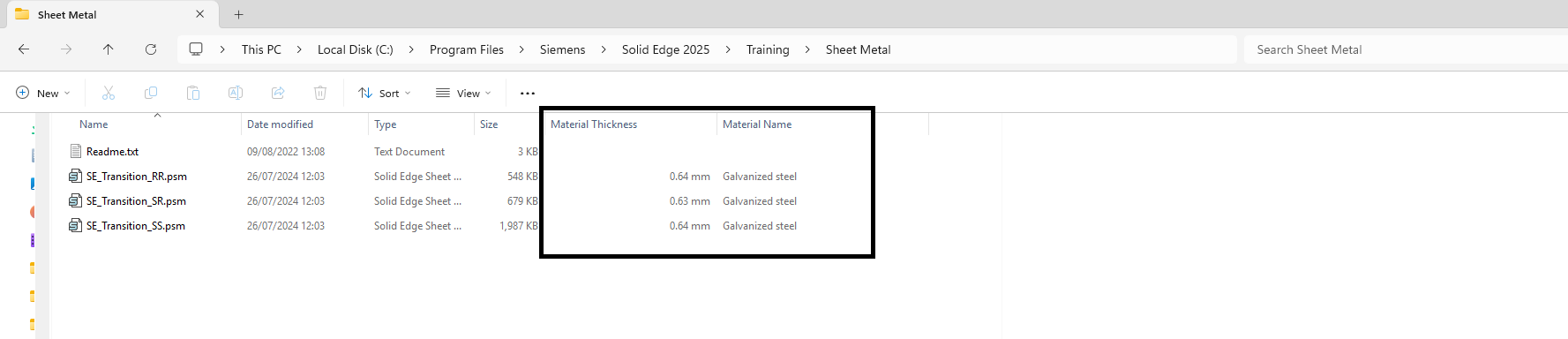
To improve the Windows Explorer file-finding experience, you can display Solid Edge properties directly as columns. This is especially useful when filenames are generic or non-descriptive, because you can scan and sort by meaningful metadata instead.
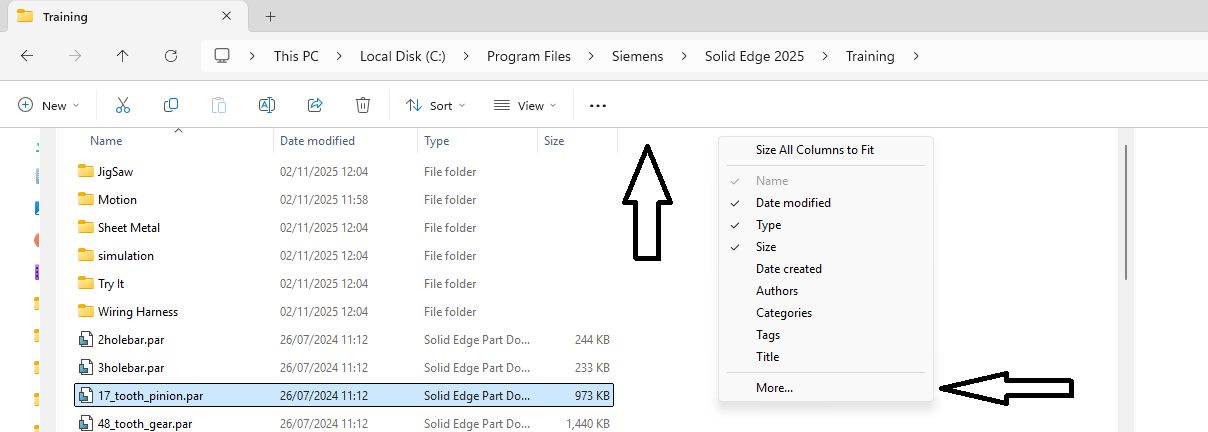
First, add the columns you want in Windows Explorer. In the folder view, right-click the column header area (for example near Name or Date modified), then click More….
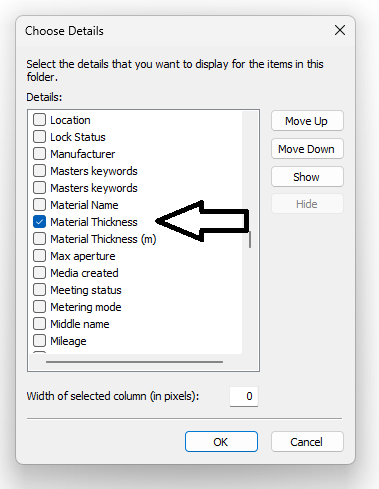
Select your desired columns. Both standard Solid Edge properties and Solid Edge custom properties can be selected here. Choose the fields you want to display, then click OK.
The selected columns are now visible in the current folder. At this stage, the view only applies to this folder, so the next step is propagating it to all subfolders.
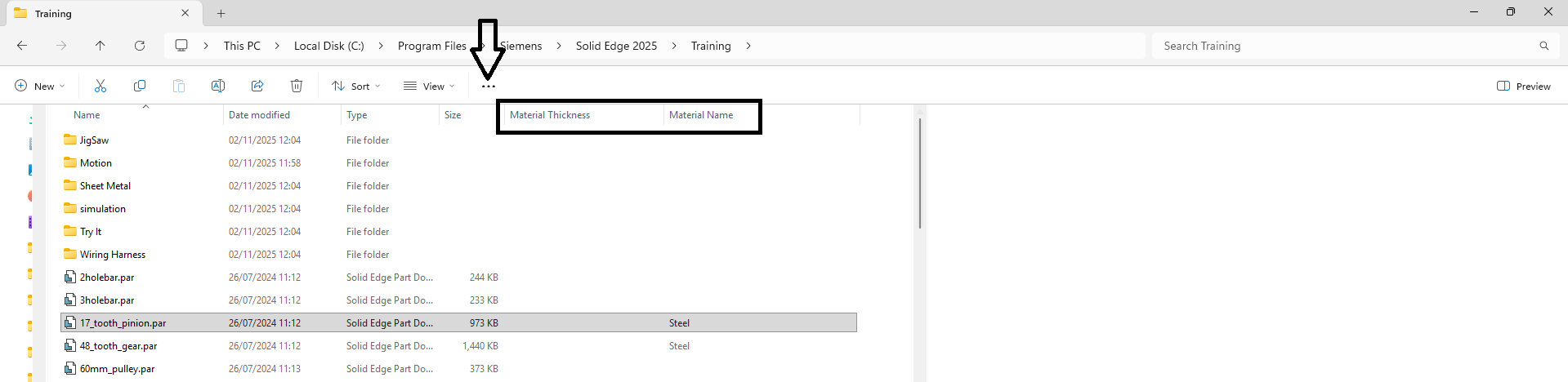
To apply the same column layout to subfolders, open the Explorer menu by clicking the three dots (…) in the toolbar.
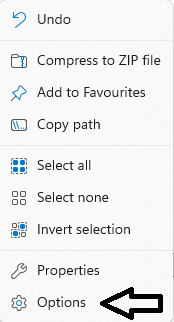
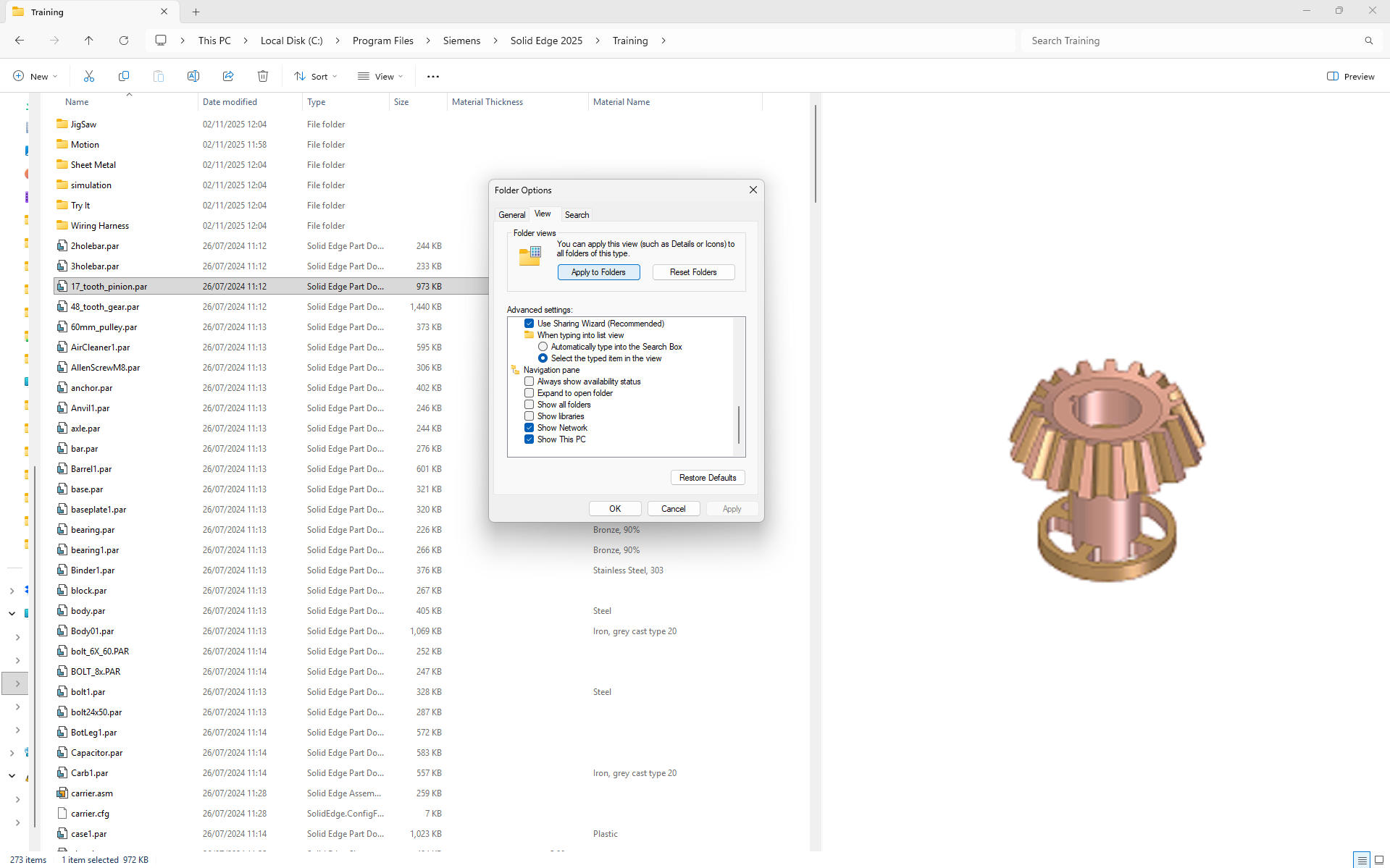
In the menu, click Options to open the Folder Options dialog.
Go to the View tab and click Apply to Folders. When the confirmation dialog appears, click Yes.
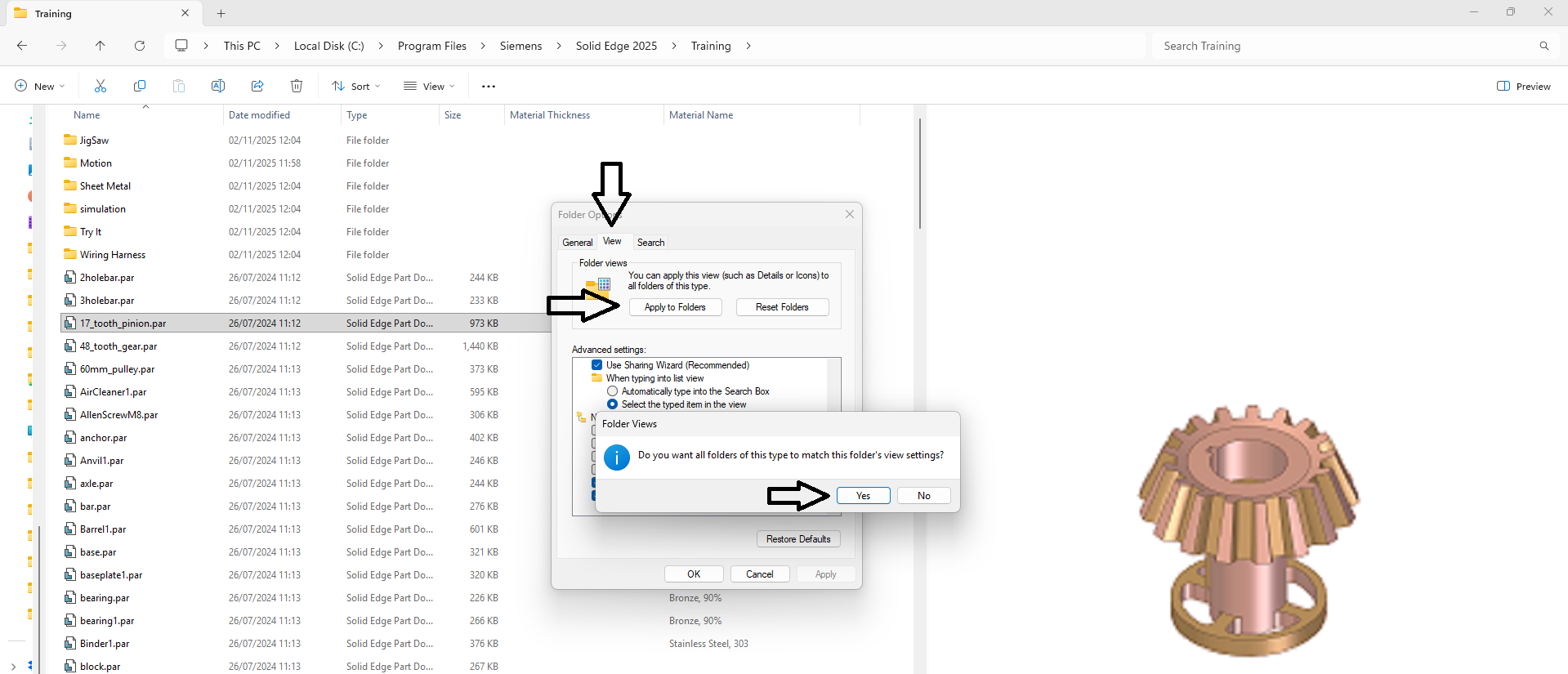
When you navigate to any subfolder, you will now see the same Solid Edge property columns. This applies consistently to all subfolders, making it easier to browse, sort, and reuse CAD data based on metadata.