Finding documents in Solid Edge: what the standard tools already do well
Solid Edge offers powerful built-in search capabilities using properties and criteria, but finding the right design becomes harder as libraries grow. This article explains what the standard tools do well, and why many teams add a focused search solution for faster reuse and insight.
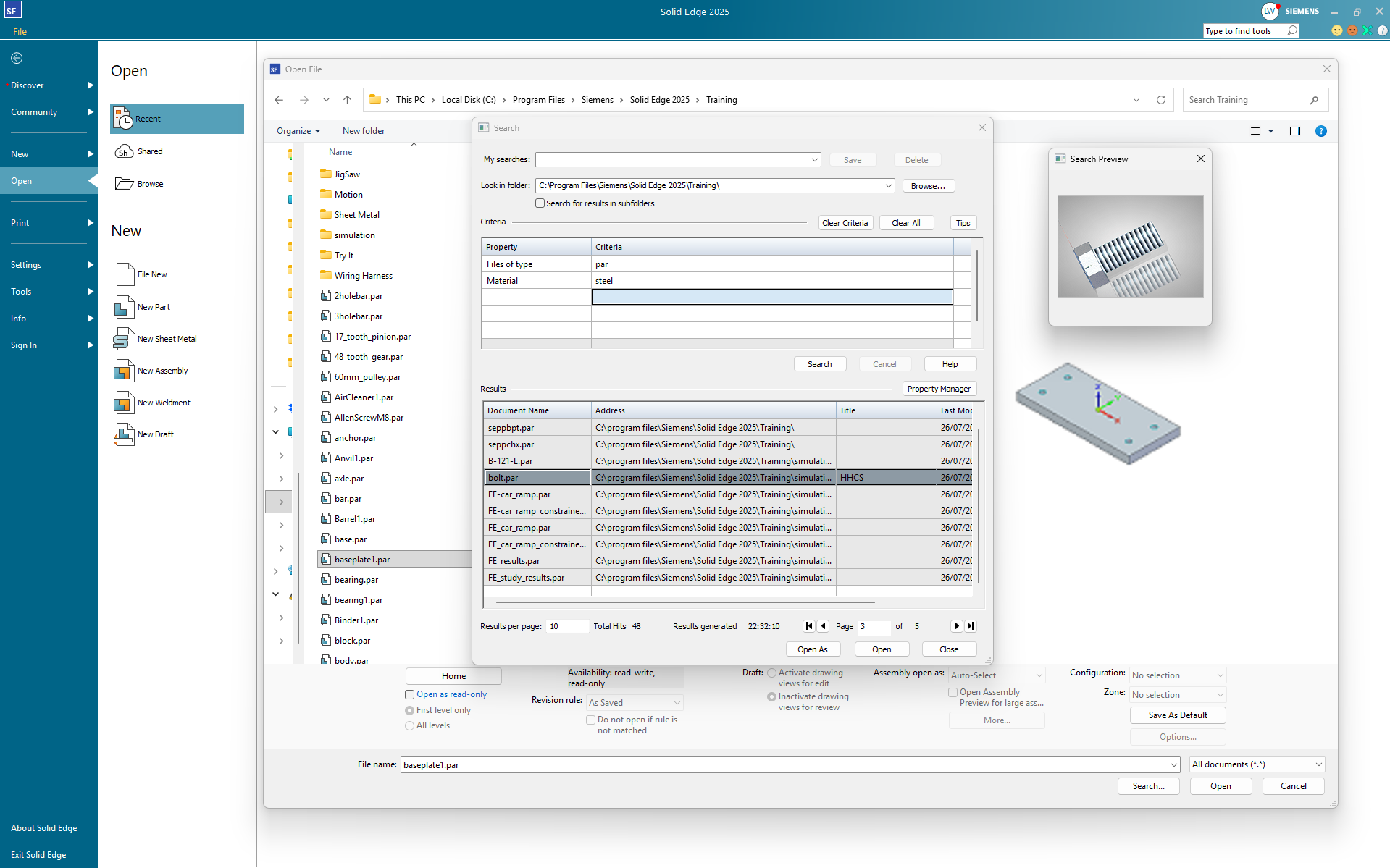
Solid Edge includes a built-in search dialog that is more capable than many users initially realize. It allows you to search unmanaged documents based on file location, document type, and a wide range of properties—both standard and custom.
You can define criteria using operators such as equals, greater than, less than, logical expressions like AND and OR, wildcards, date ranges, and even checks for empty or non-empty fields. Searches can be saved and reused, and results can be previewed directly from the search window. For many day-to-day tasks, this functionality works exactly as intended.
In other words: Solid Edge already gives you the building blocks to search beyond filenames.
However, as libraries grow and reuse becomes more important, the way engineers want to search often shifts. Instead of asking “Where is this file stored?”, the question becomes “Which existing design matches what I need right now?”
That is where the difference between capability and workflow starts to matter.
Why teams often add a dedicated search tool
The Solid Edge search dialog is powerful, but it is still embedded in a file-open workflow. It is designed to locate documents, not to actively explore, compare, and curate a growing design library.
A dedicated tool like DrawingManager approaches the same data from a different angle:
- Search is the primary task, not a secondary dialog
- Results are presented as a working dataset, not just a file list
- Custom properties are first-class citizens, not optional filters
- Searching becomes iterative and exploratory instead of trial-and-error
This distinction becomes especially relevant when engineers are trying to:
- Reuse existing designs instead of recreating them
- Validate or clean up metadata across many files
- Understand what already exists before starting something new
None of this replaces Solid Edge’s native functionality. It complements it.
Think of the built-in search as a precise instrument for targeted queries—and a focused search tool as a workspace for understanding your entire CAD library.
When does this matter?
If your file count is small and naming is consistent, the standard tools may be all you need. But once your archive grows into the hundreds or thousands of documents, searching stops being a technical problem and becomes a productivity problem.
Dedicated tools are designed to fill that gap.